How to Install Google Map Lead Collector Chrome Extension
This guide will walk you through the process of installing the Google Map Lead Scraper chrome extension using the load unpacked method.
Steps to Install
-
Download and Extract the Extension
- Download the Google Maps Lead Collector Chrome extension zip file here: https://drive.google.com/file/d/1nxj_b9W3GiXmGEzJMo7pTYuMAgHtwD1K/view?usp=sharing
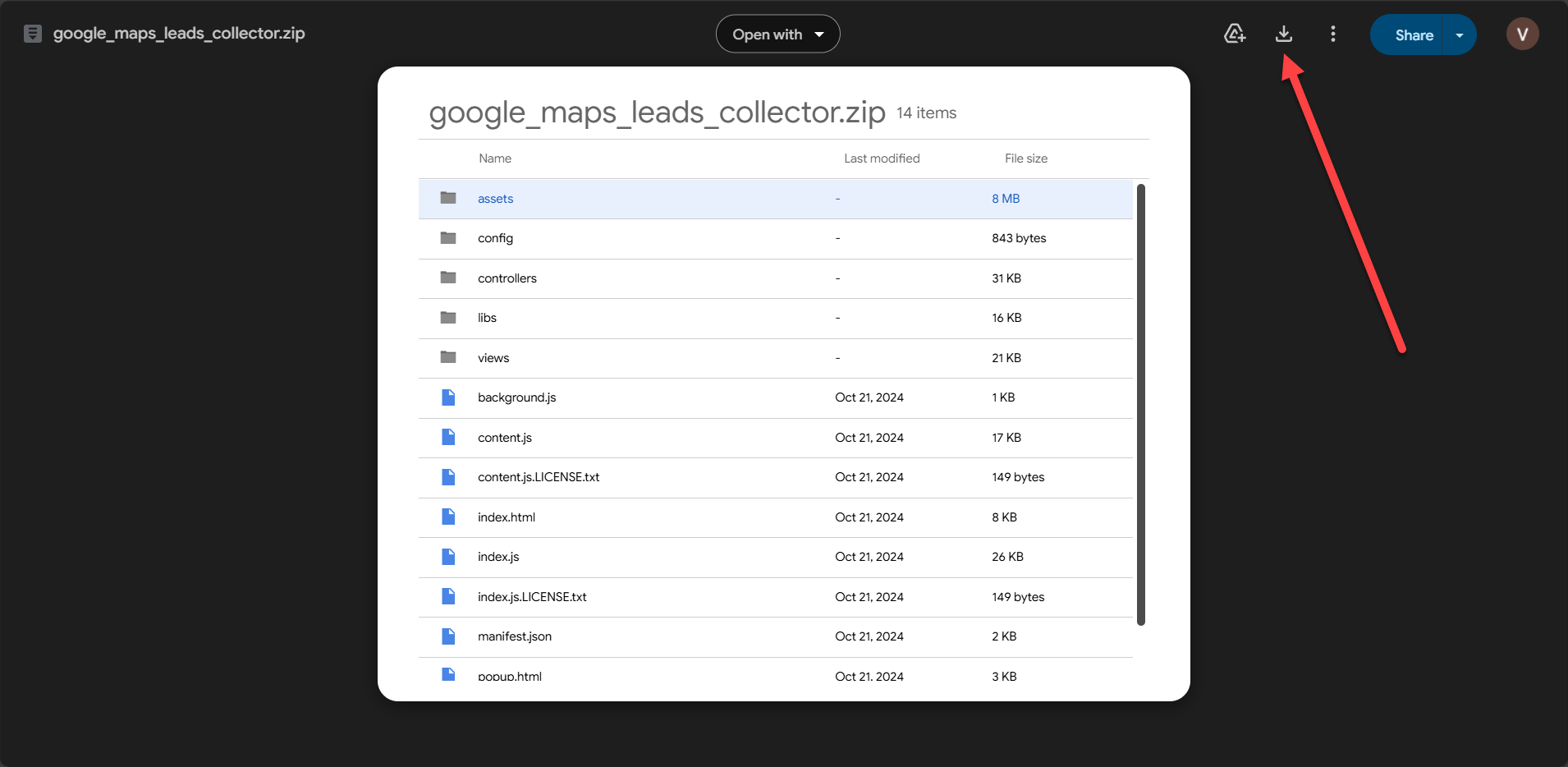
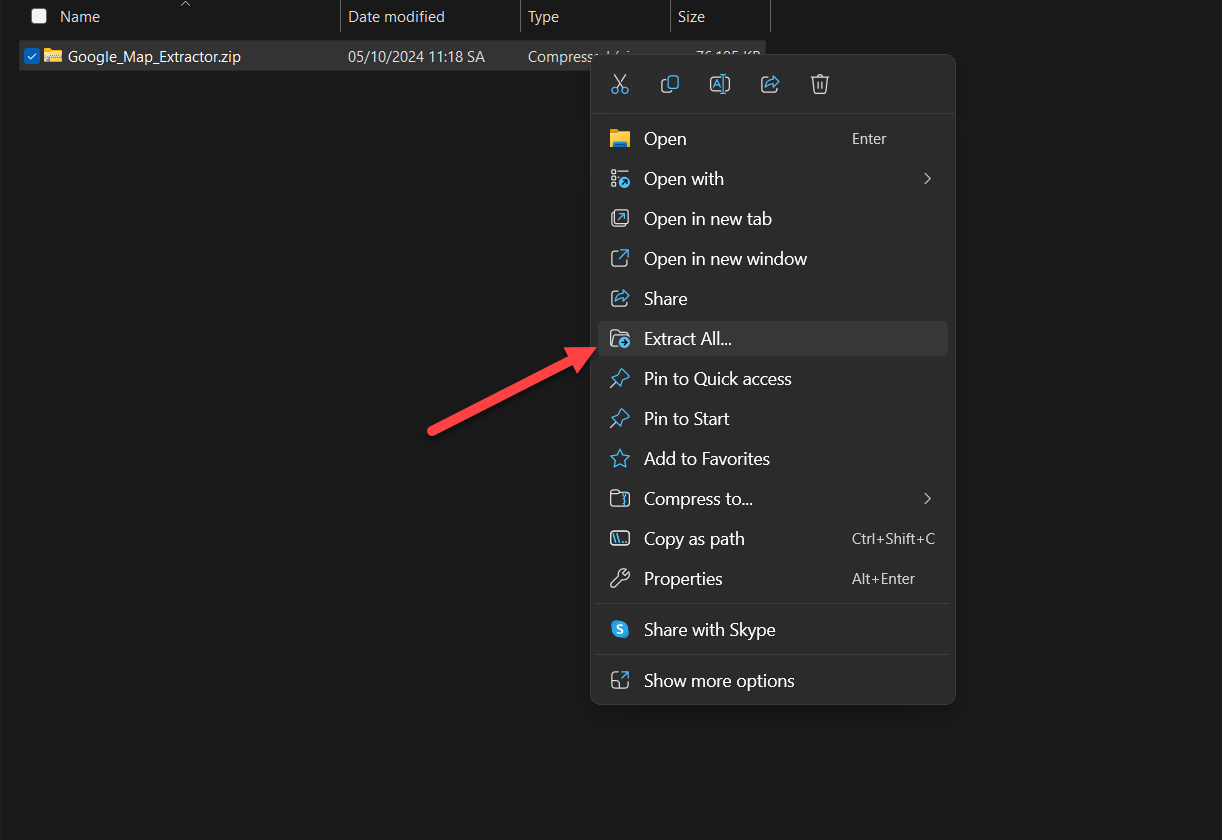
- Extract the contents of the zip file to a folder on your computer.
-
Open Chrome Extensions Page
- Open Google Chrome browser.
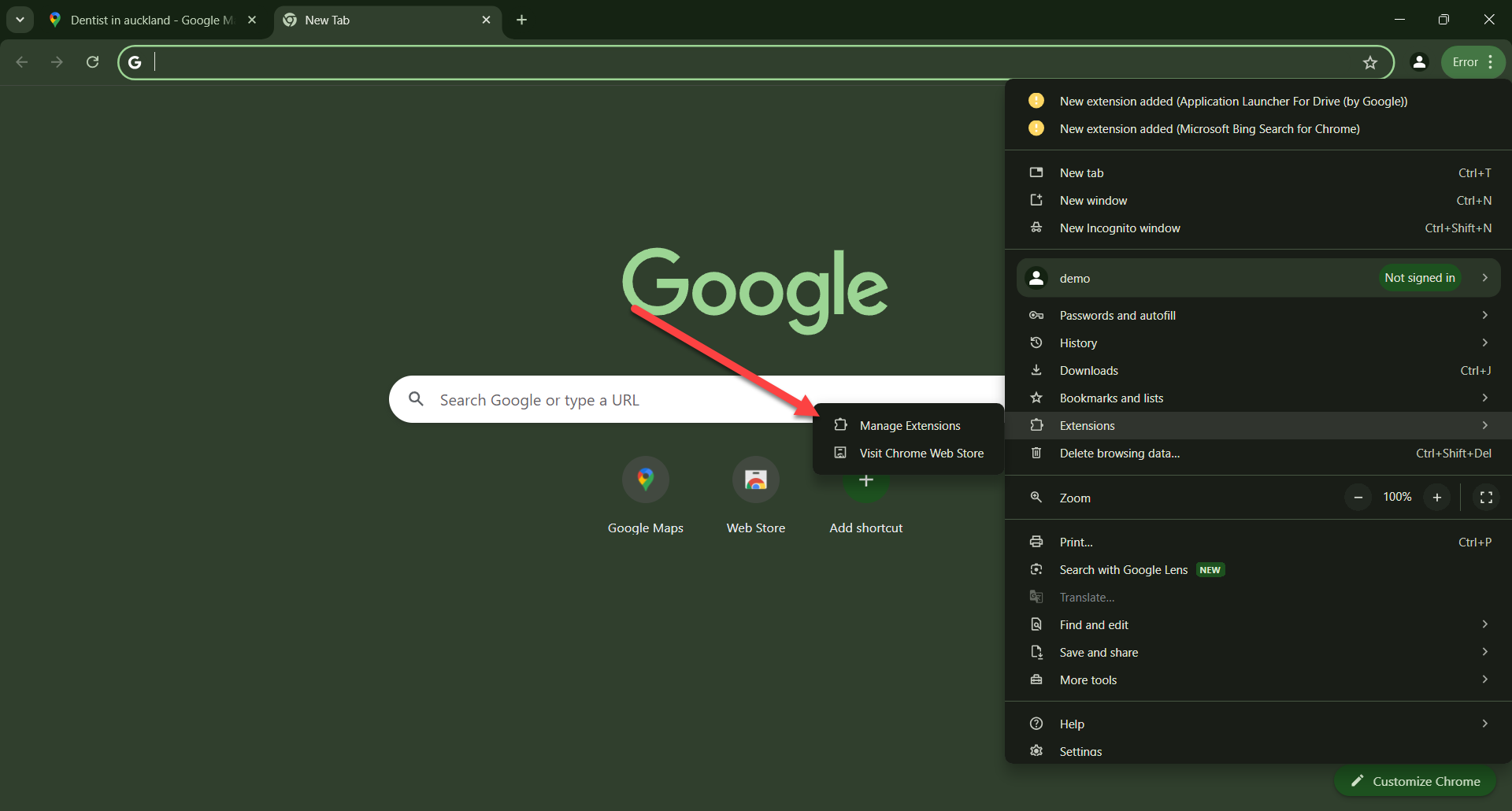
- Click on the three dots menu in the top right corner.
- Go to Extensions > Manage Extensions.
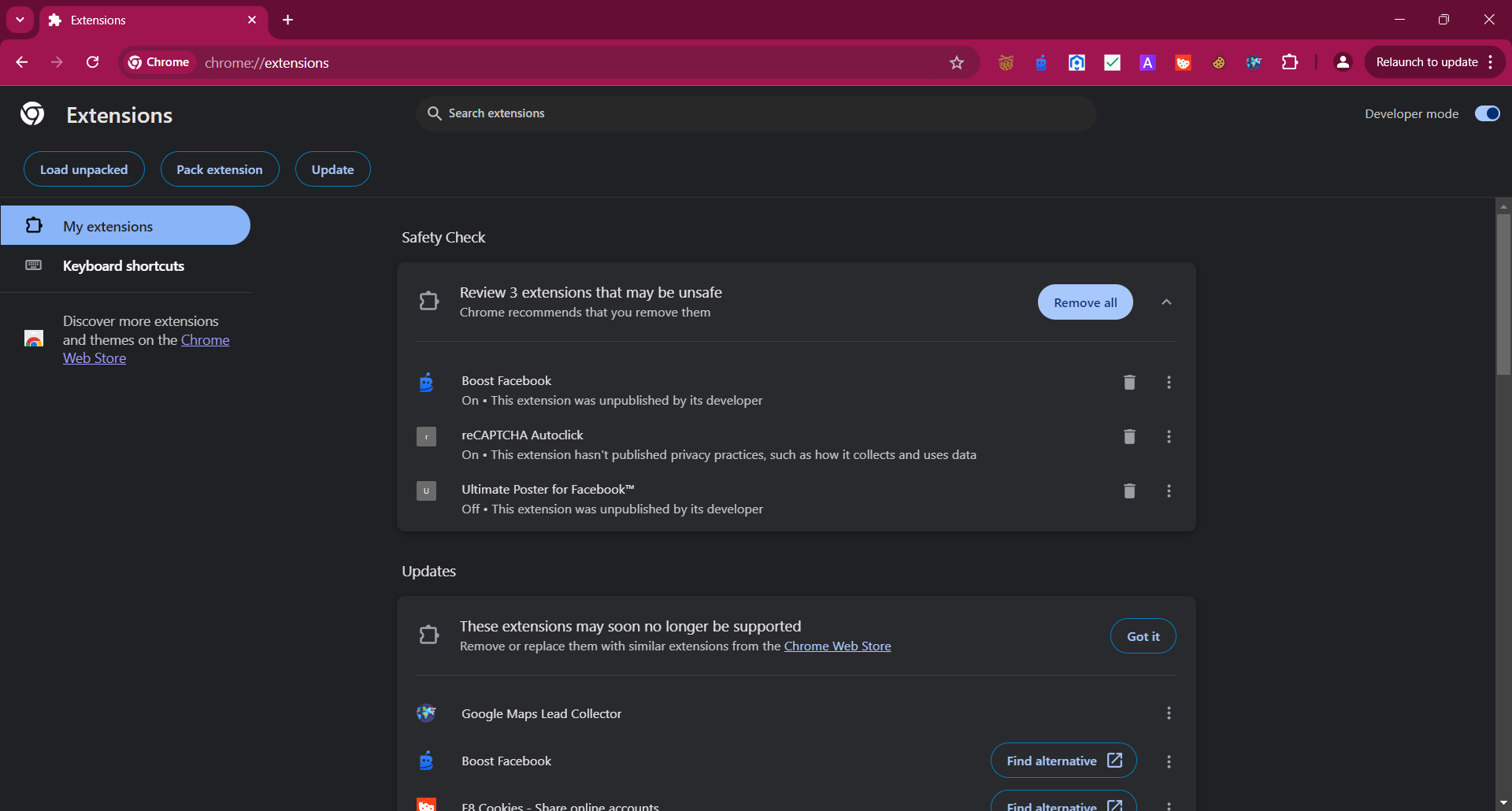
- Alternatively, you can type
chrome://extensions/in the address bar.
(The same process works in Chrome, Edge, and Opera browsers. If you encounter any issues in Chrome, try using Microsoft Edge or Opera instead - they follow a similar installation process.)
-
Enable Developer Mode
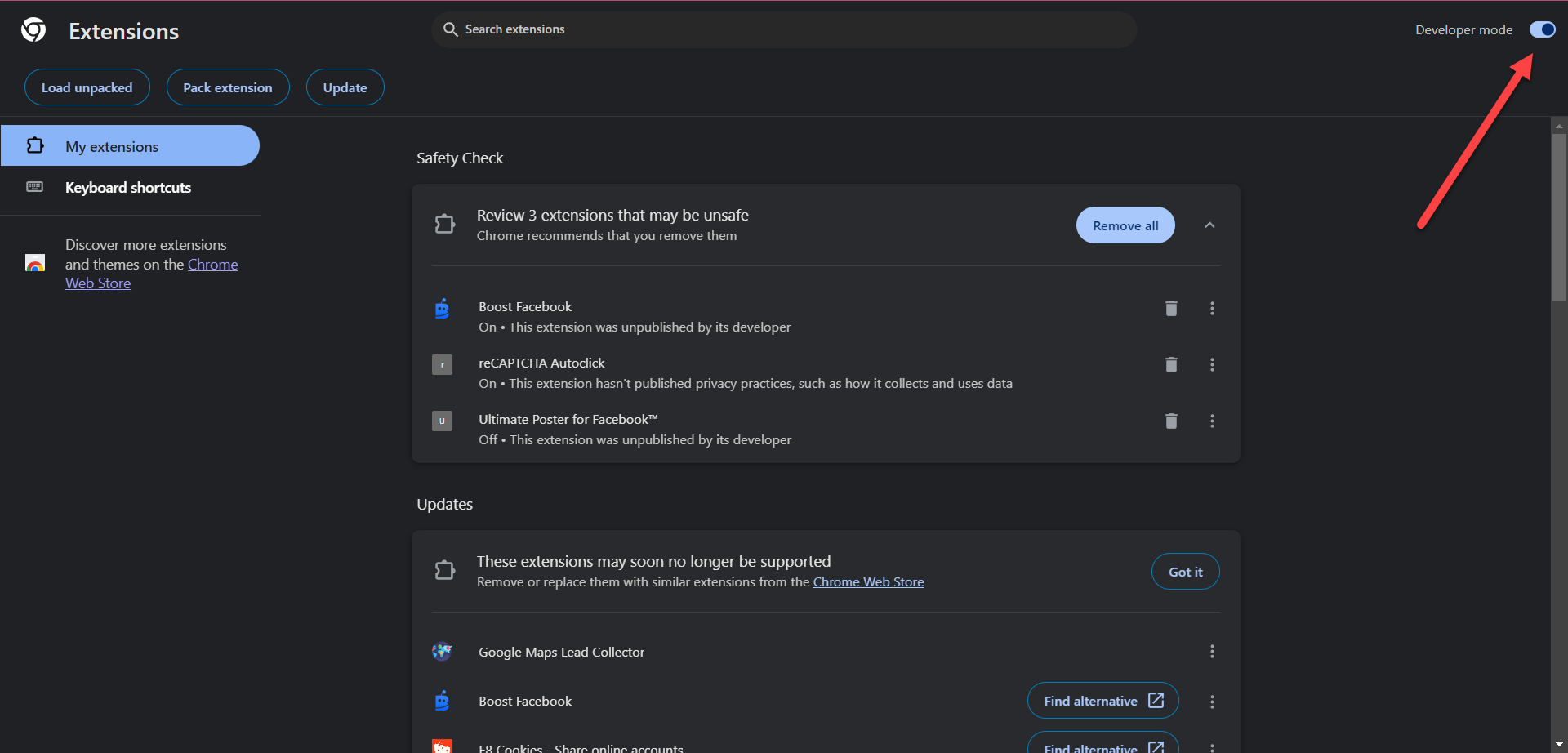
- In the top right corner of the Extensions page, toggle on "Developer mode".
-
Load Unpacked Extension
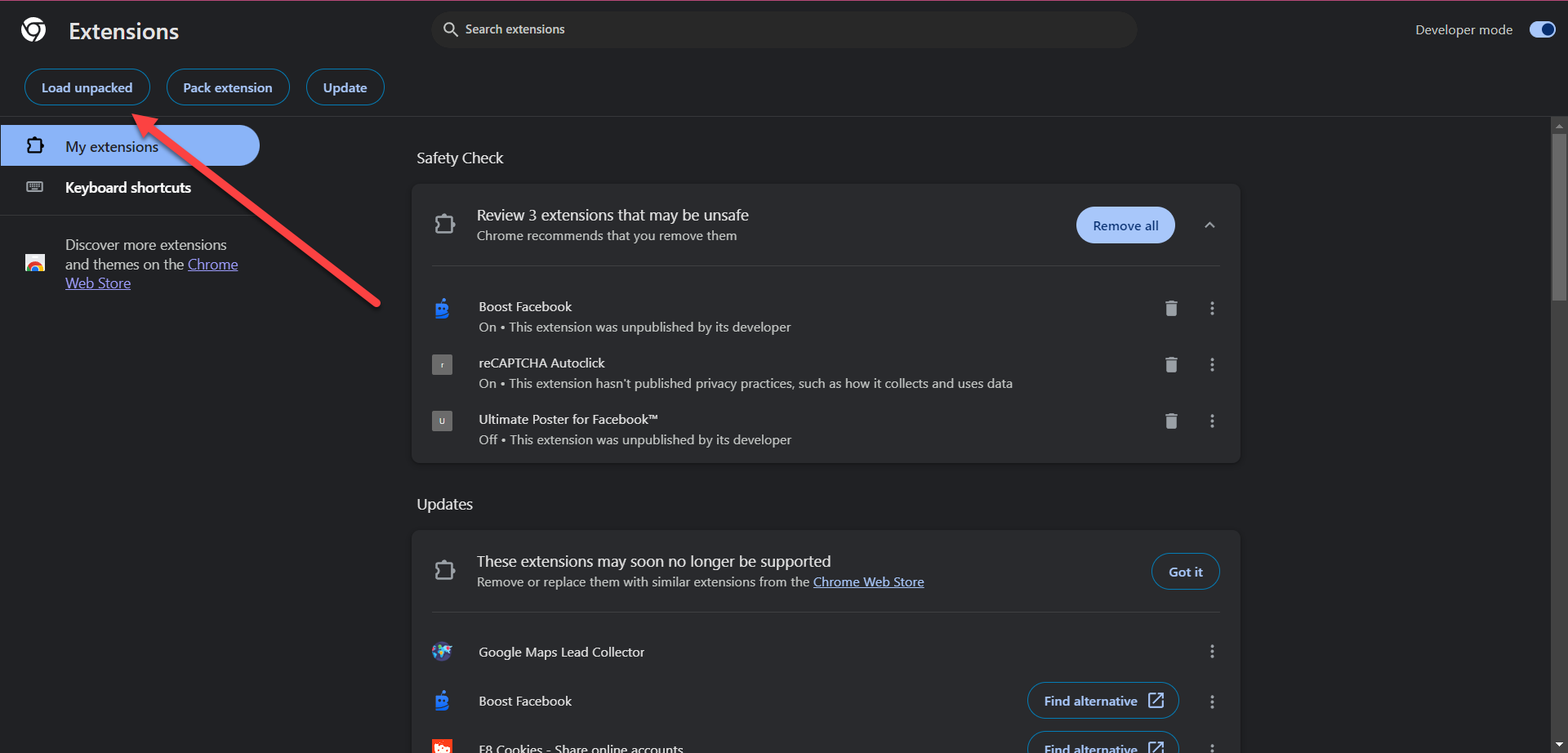
- Click on the "Load unpacked" button that appears after enabling Developer mode.
- Navigate to the folder where you extracted the extension files.
- Select the folder and click "Select Folder".
-
Verify Installation
- The Google Map Lead Collector extension should now appear in your list of installed extensions.
- You should see the extension icon in the Chrome toolbar.

-
Pin the Extension
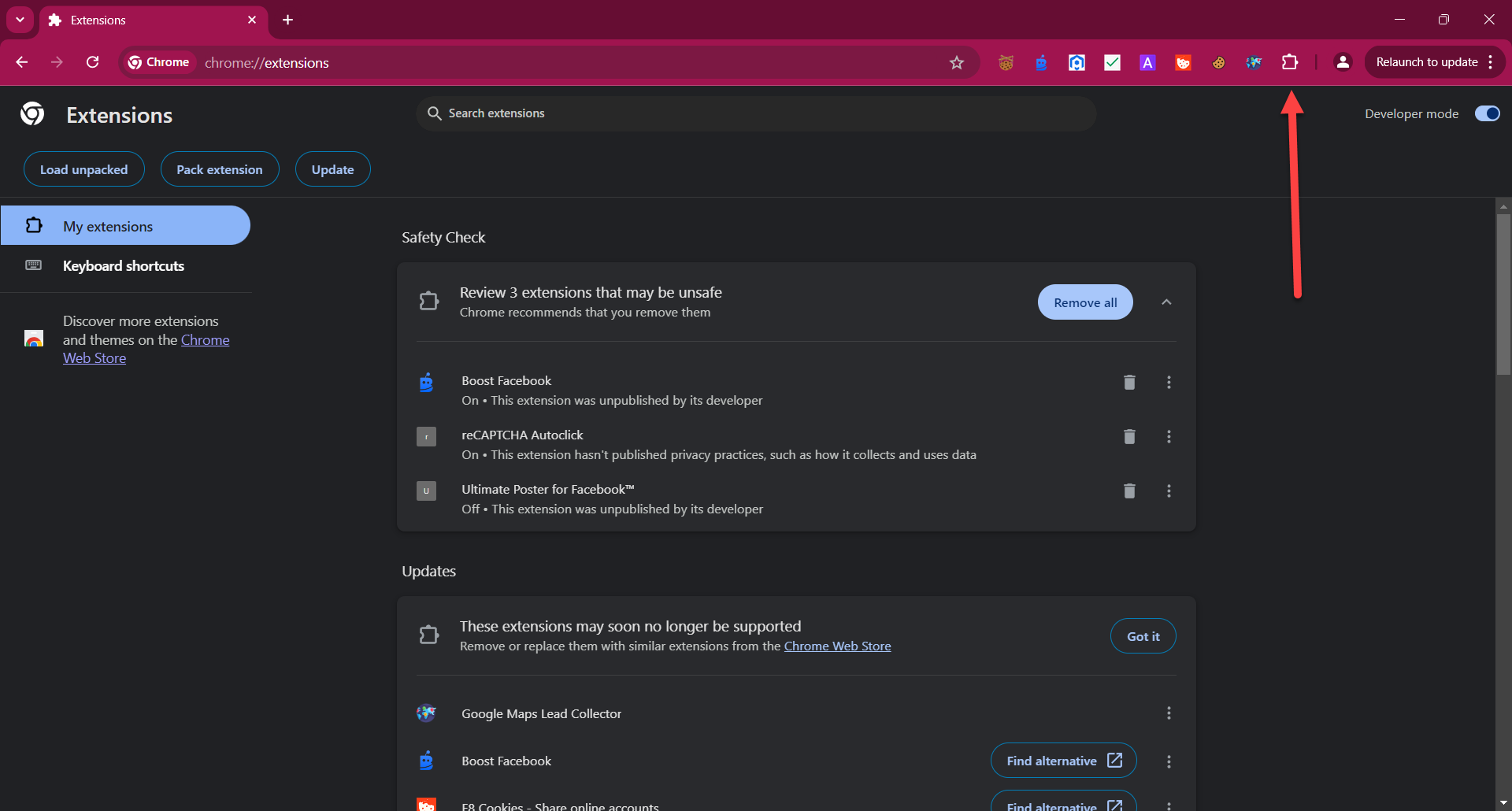
- If the extension is not visible, click on the puzzle piece icon in the Chrome toolbar to open the extensions menu.
- Click on the puzzle piece icon in the Chrome toolbar to open the extensions menu.
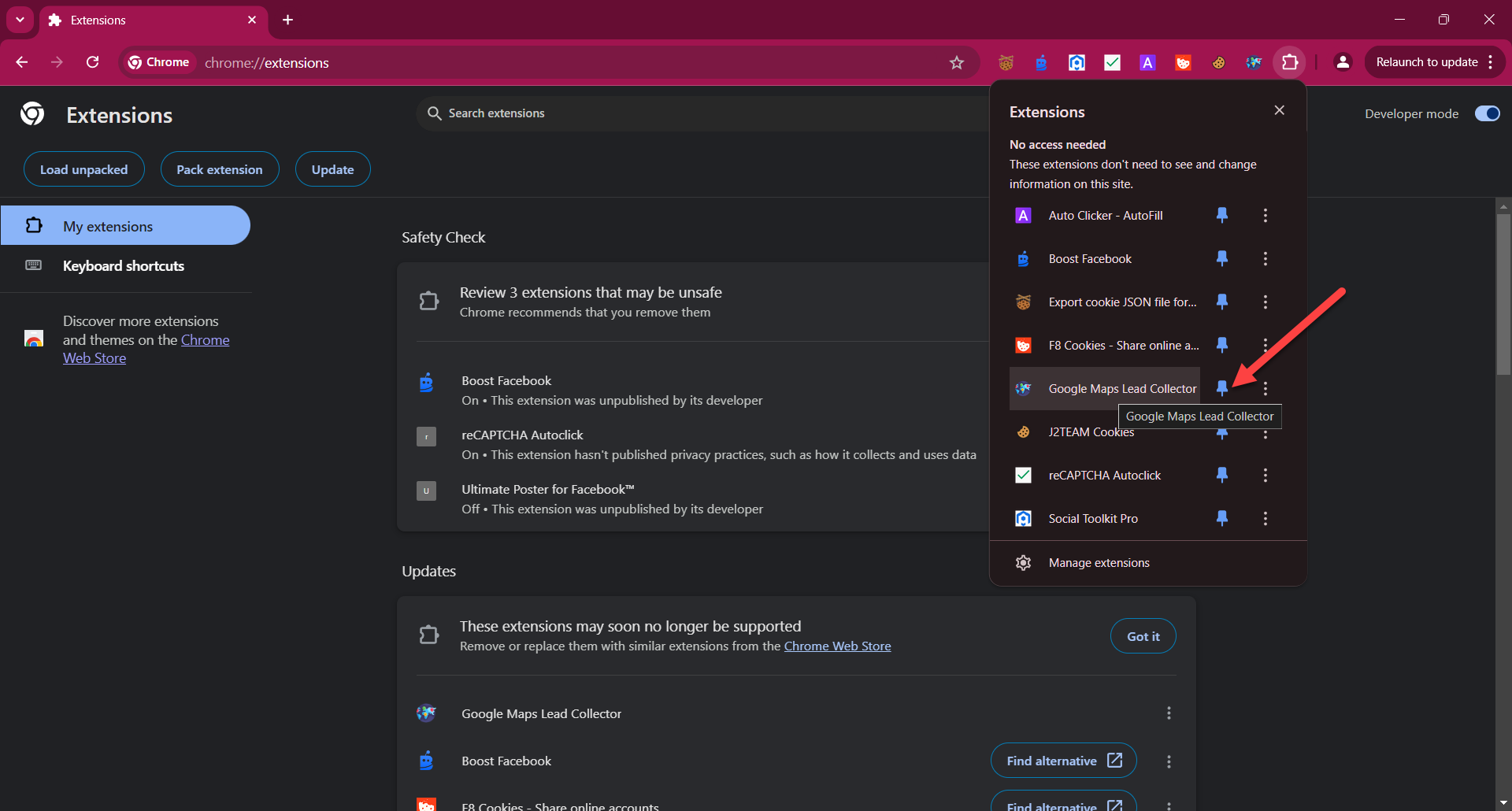
- Find the Google Map Lead Collector extension in the list.
- Click on the pin icon next to the extension to pin it to the toolbar for easy access.
Troubleshooting
If you encounter any issues during installation:
- Make sure you've extracted all files from the zip folder.
- Verify that the folder you're selecting contains the
manifest.jsonfile. - If the extension doesn't appear, try restarting Chrome.