How to Use Google Maps Lead Scraper Chrome Extension
This guide will walk you through the process of using the Google Map Lead Scraper Chrome extension to collect business leads from Google Maps.
Steps to Use the Extension
-
Open the extension
- Launch Google Chrome
- Click on the Google Map Lead Scraper extension icon in your Chrome toolbar.
-
Enter Locations
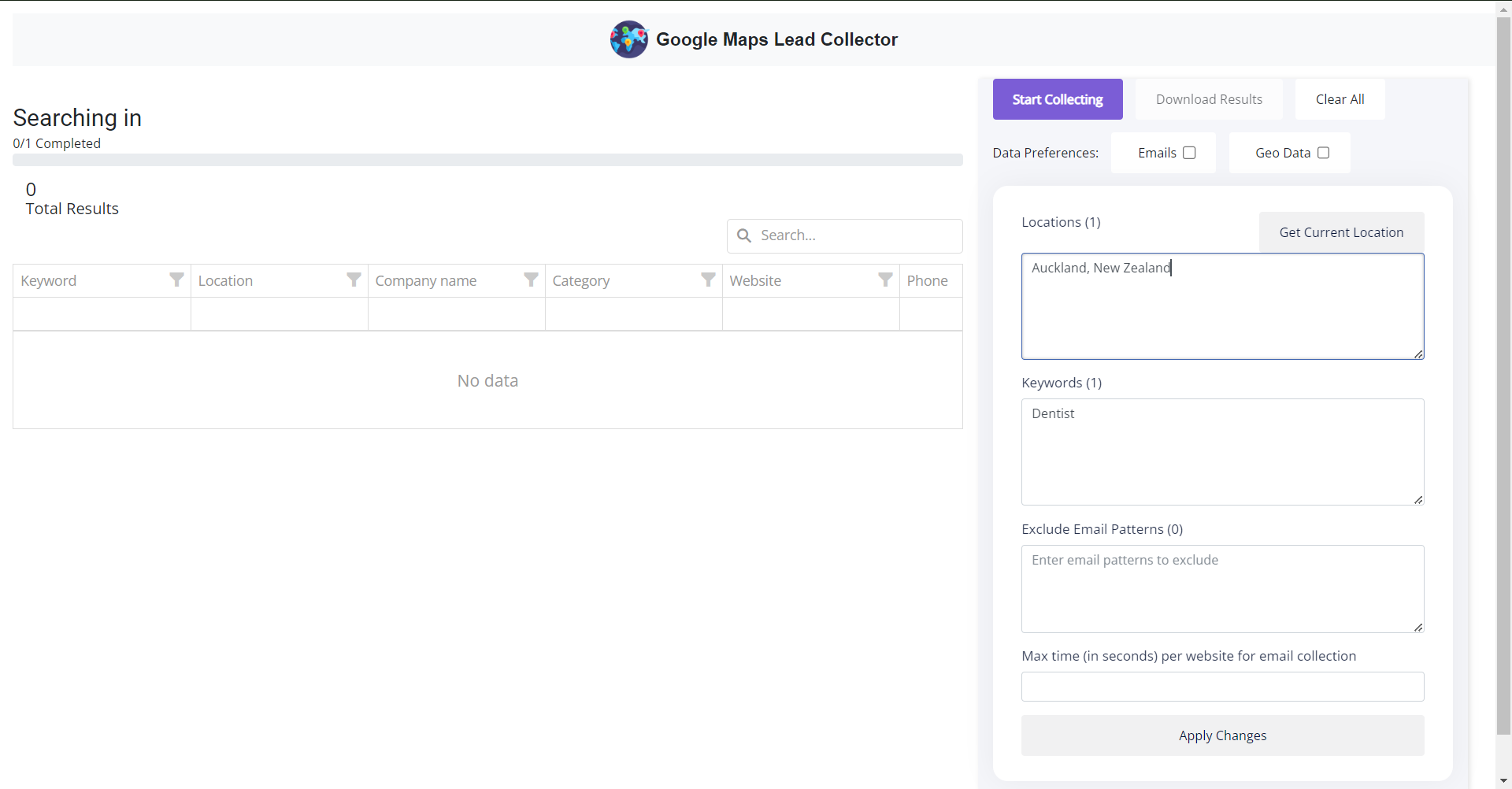
- In the extension popup, find the "Locations" field.
- Enter the locations you want to search, each on a new line. For example:
New York, NY
Los Angeles, CA
Chicago, IL
-
Enter Keywords
- In the "Keywords" field, enter the types of businesses you're looking for, each on a new line. For example:
dentist
coffee shop
gym
- In the "Keywords" field, enter the types of businesses you're looking for, each on a new line. For example:
-
Collect Emails
- If you want to collect emails, check the "Emails" checkbox.
-
Start Collecting
- After entering your locations and keywords, click on the "Start Collecting" button.
-
Wait for Results
- The extension will now start searching Google Maps based on your inputs.
- This process may take some time depending on the number of locations and keywords you've entered.
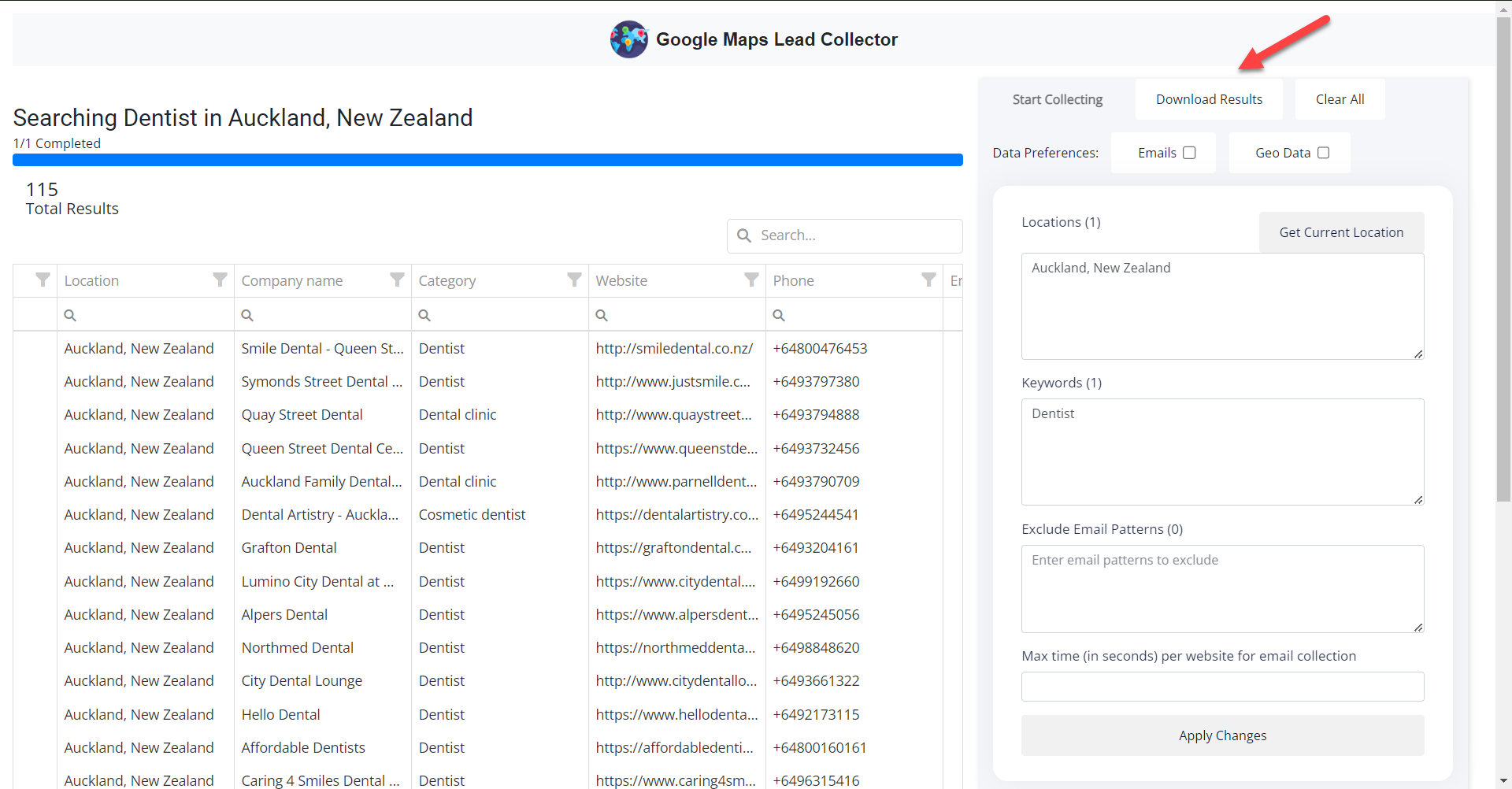
- You can see the progress in the extension popup.
-
Download Results
- Once the collection is complete, a "Download Results" button will appear.
- Click this button to download a CSV file containing the collected business information.
-
Use the Collected Data
- You now have a CSV file with publicly available business information.
- This data can be used for various marketing and outreach purposes.
Next Steps
Now that you have collected business leads, you can reach out to these businesses using their publicly available contact information. If you're looking for efficient ways to send SMS and emails to these contacts, consider checking out our marketing automation tools:
These tools can help streamline your outreach process and improve your marketing efficiency.