Getting Started with Your First SMS Campaign
Ready to launch your first SMS campaign with SleekSend? Let's dive in and turn those messages into marketing magic! Follow this step-by-step guide to get your campaign up and running in no time.
Step 1: Log In and Set Up Your Device
- Head over to SleekSend's dashboard and log in to your account.
- Navigate to the Android Hosts page.
- Click on the "Add Device" button to connect your Android phone.
Adding Your Android Device
SleekSend makes it a breeze to add your device. Here's how:
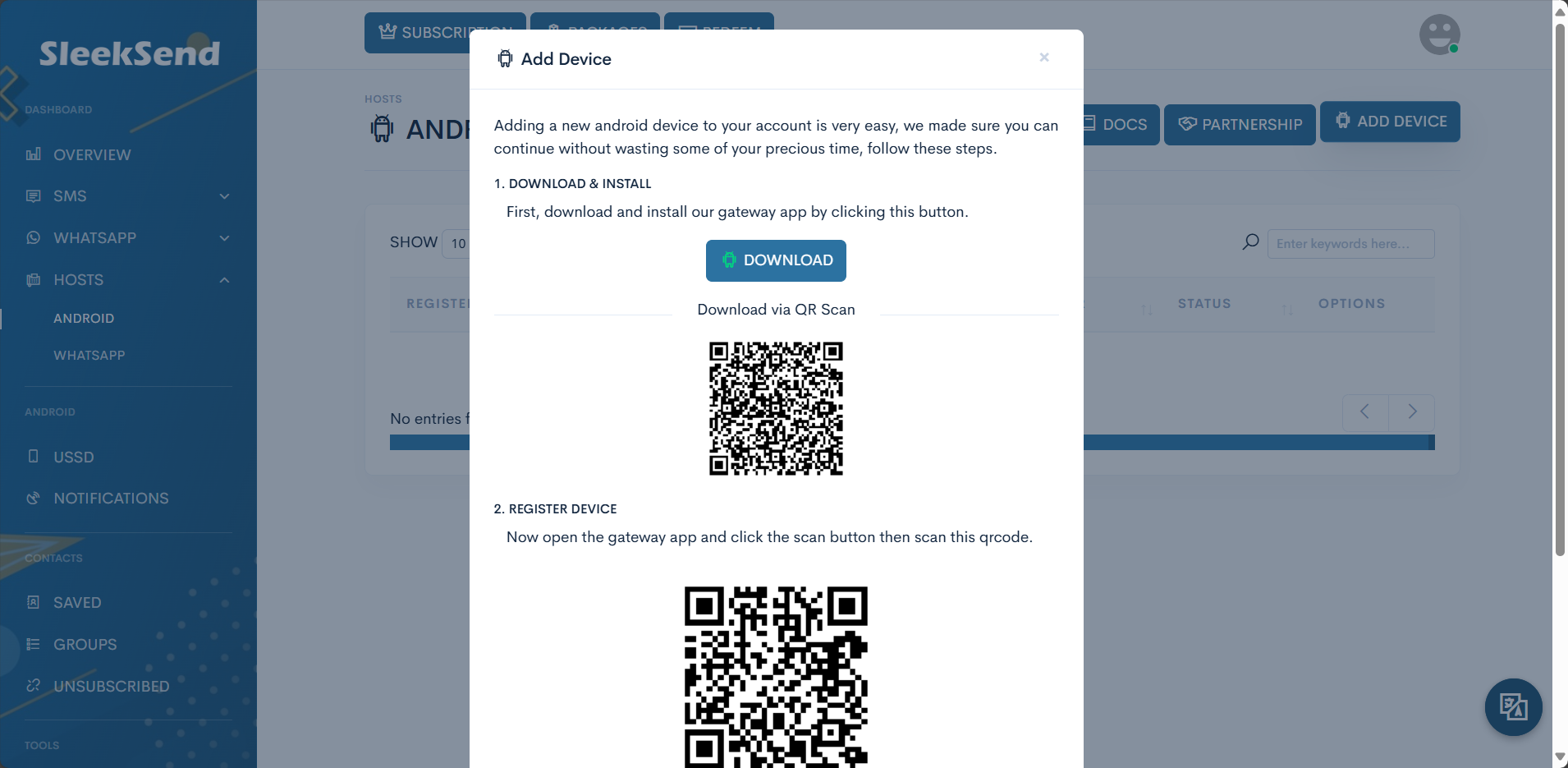
- Download & Install the Gateway App
- Click the "Download" button on the dashboard.
- Alternatively, scan the provided QR code to download the app directly to your phone.
-
Register Your Device
- Open the SleekSend Gateway app on your Android phone.
- Make sure you allow all permissions requested by the app.
- Tap the "Login" button in the app.
- Use your phone to scan the QR code displayed on the SleekSend dashboard.
-
Confirmation
- You'll see a confirmation message once your device is successfully added.
- Your Android phone is now ready to send messages through SleekSend!
Step 2: Create Your Bulk SMS Campaign
Now that your device is set up, let's create your first campaign:
- Go to the SMS Campaigns page.
- Click on the "Bulk" button to start a new bulk SMS campaign.
Step 3: Fill Out the Campaign Form
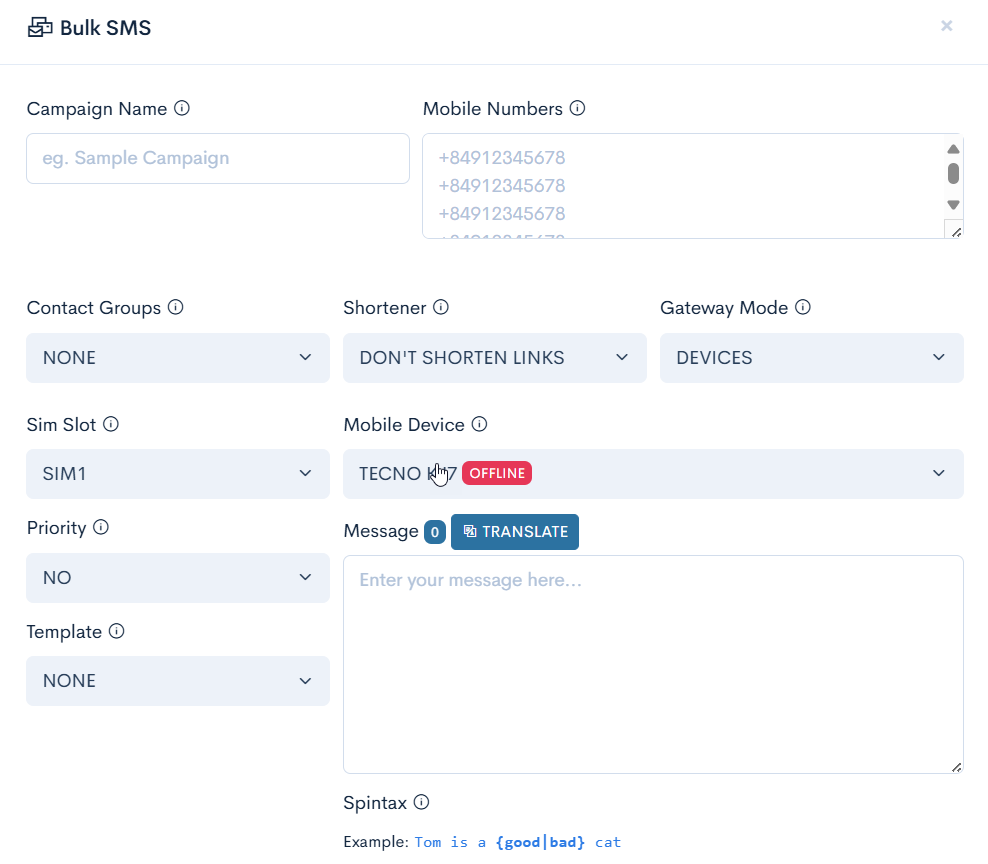
Time to craft your message! Here's a breakdown of the form fields:
- Campaign Name: Give your campaign a memorable name (e.g., "Summer Sale Kickoff").
- Mobile Numbers: Enter recipient phone numbers, one per line (e.g., +84912345671).
- Contact Groups: Select from your pre-made contact groups or leave as "None" if using individual numbers.
- Shortener: Choose if you want to use a URL shortener for any links in your message.
- Gateway Mode: Select your preferred gateway.
- SIM Slot: Choose which SIM card to use if your device has multiple.
- Priority: Set the importance level of your campaign.
- Template: Select a pre-made template or create a new one.
- Mobile Device: Choose which connected device to send from (e.g., Samsung S20).
- Message: Type your SMS content here. Keep an eye on the character count!
Pro Tips for Your Message:
- Spintax: Use {option1|option2} format for text variations. Example: "Our {amazing|incredible} sale starts now!"
- Shortcodes: Personalize your messages with codes like
{{contact.name}}or{{date.now}}.
Step 4: Review and Send
Before hitting that send button:
- Double-check all your settings and message content.
- Consider sending a test message to yourself first.
- Ensure your Android device is connected and has sufficient battery life.
Step 5: Launch Your Campaign
You're all set! Click the "Send" button and watch as your campaign takes flight. 🚀
What's Next?
- Monitor your campaign's performance in the dashboard.
- Analyze responses to refine your future campaigns.
- Explore other features like WhatsApp messaging or automated responses.
Remember, great marketing is about connecting with your audience. Use SleekSend to send messages that resonate and drive action!
Need help? Our support team is always ready at support@sleeksend.center.
Happy messaging! 📱💬